Showing posts with label Microsoft. Show all posts

Tuesday, March 4, 2014

Applying SEO to your SharePoint Online website

In this document we will describe how to provide better SEO (Search Engine Optimization) for your Office 365 SharePoint Online website.

How to do this?

First, it's good to create a Bing webmaster account, aswell as a Google Webmaster account.


For Google, follow this link.
For Bing, follow this link.

With these tools you can enable Google and Bing to crawl your Office 365 website. You'll need to change certain metatags so that Google and Bing know that you are the owner of the specific website.

1. To do this, logon to your Office 365 tenant with administrative credentials.
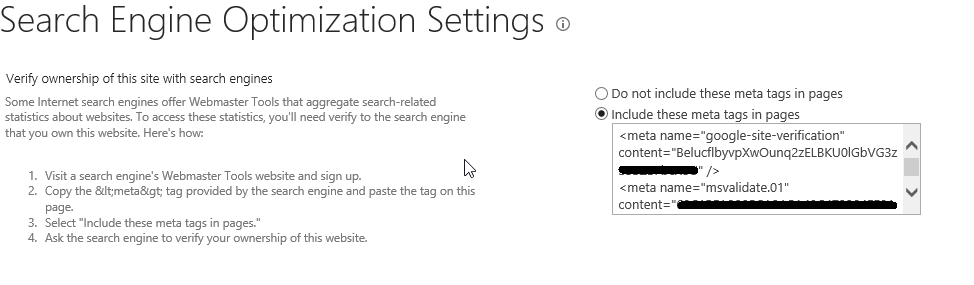
Then, go to Site Settings --> Site Collection Administration --> Search Engine Optimization Settings.

2. Now, you can fill out the tags you have gotten from Google / Bing (you get these when you create the webmaster accounts).


3. Verify on your Google and Bing webmaster account that the adding of the tags has succeeded.

It's also possible to give the sitemap.xml to Google or Bing. This will be created automatically by SharePoint (for mobile sites this is a different one). You can find it in the root of the site. The sitemap.xml gives each URL of your site to Google or Bing.

Additionally, it's possible to change the SEO settings per page (metadata / keywords).

1. Again, logon with administrative credentials to your Office 365 tenant.
2. Now, follow the steps as stated in the screenshot:

3. You will go to the SEO properties screen, where you can fill out all the information about your page.


Hopefully this information has been useful for you!


Thursday, November 28, 2013

Top 5 new features in Windows 8.1


Windows 8.1 is RTM


Windows 8.1 is out now for a couple of weeks.

So what has been changed in Windows 8.1 in regards to its predecessor Windows 8? Below you will find a top 5 listed!

On 1: The Start button has returned!

1. Start ButtonOn of the big boos of the users that migrated to Windows 8 was the missing Star button. Now in Windows 8.1 it has returned. However, notice that it's only the button. The old-skool menu hasn't returned, it still opens the Metro UI Start menu.


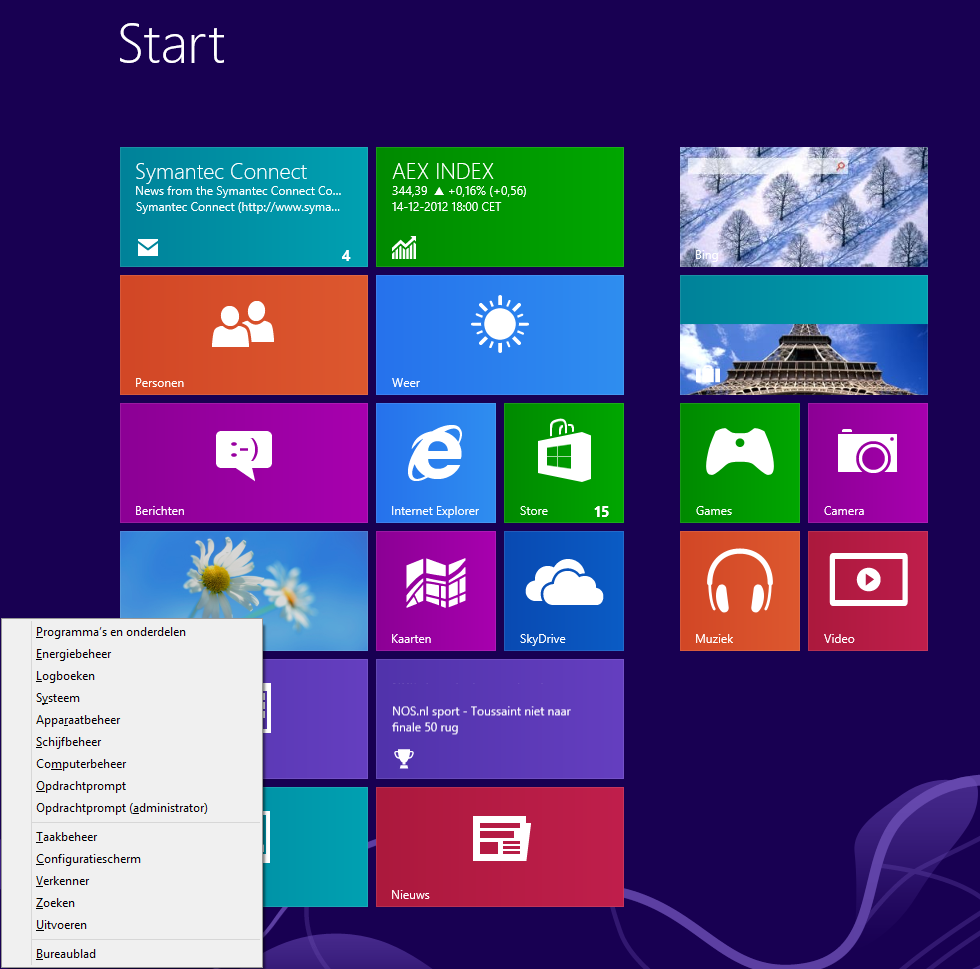
Also when you rightclick the start button, it opens a new small start menu, which is similar to the Windows + X shortcut you could use in Windows 8.

On 2: Boot to desktop


2. Boot to Desktop Another option is to boot directly to the desktop after the computer has started, instead of showing the Metro UI Start menu. This was also a wish of the old skool users, which were used to the Desktop.


On 3: ImprovedSearch

 
The search possibilities have been improved greatly in Windows 8.1. When you search for certain things, the relevant links will be shown directly. Also the apps that can be used to open it will be showed directly. For instance, Media Player to open music or Internet Explorer to open the links.
 

On 4: More possibilities for showing windows

There are now more possibilities in showing content on your screen. It can be split in half, or with a sidebar (1/4 and 3/4 of your screen). If you own a multi-monitor display setup, it is now possible to show 8 apps at a time. 4. More Windowing Options for New-Style Apps
 

 On 5: More robust settings

There are more settings available in the PC settings menu then previously. Think about settings to change for your Display, mouse, keyboard, autoplay, account etcetera. Also, you can find CPU / Memory information, and much much more! 6. More Robust Settings in Modern Interface

Thursday, March 28, 2013

Windows 8 shortcuts

Windows 8 is on the market for some time now, but despite that fact, some users still find it hard to get used to the interface. For some, the absense of the Start menu is a reason not to upgrade. But no worries! Hopefully after reading this blog, a world of user friendliness will be opened.

To navigate quickly within Windows 8, it's useful to make use of shortcuts. Below you can find some shortcuts documented: 

When you press the Windows button, you can switch between the program that is currently running, and the application list:


Windows 8 Start screen
When you scroll your mouse in the start screen, you will navigate left or right. Once you start typing the name of an application, for instance "Oult", then Windows will search for programs with that phrase in their name. This way you can open programs really fast and easy.

Press Windows + C for the so called 'Charms bar'. This menu is what opens on the right side of your screen, it also opens when you move your mouse to the right bottom corner of your screen.

Press Windows + I to go quickly to the 'Settings' screen. Here you will find 'PC Settings', 'Personalization', and 'Control Panel'.

If you quickly want to see all your Apps, then press Windows + Q.

To search quickly for files, press Windows + F.

When you have connected an extra monitor, to extend or dulicate your monitor, or use a beamer, then this combination will show you your options: Windows + P.

If you want to lock your screen for security reasons? Then press Windows + L.

Quickly open Windows Explorer? --> Windows + E.

Quickly open the "Run" box?  --> Windows + R.
 

And possibly the most useful command (which comes closest to the traditional Start menu): The Windows Tools menu --> Windows + X.

Wednesday, March 27, 2013

Microsoft Virtual Academy

Microsoft Virtual Academy


Do you want to tune your knowledge of Microsoft products? Take a look at the  Microsoft Virtual Academy. Create a free account, and choose which program you want to participate in!

This site is a great way to help study for a Microsoft exam, or just to keep up to date of your overall knowledge of Microsoft products!

The latest products are covered, and when done, you have the ability to obtain a certificate that you have followed the course. Also you can save up points, to become the best scoring learner of the week or month!