Showing posts with label query. Show all posts

Thursday, March 20, 2014

Howto: Create a Driver Package in SCCM 2012 R2

Welcome back! Today we'll discuss how to create a driver package in SCCM 2012 R2, and add it to a Task Sequence. We will discuss how to use a WMI query in the Task Sequence, to distinguish the model to get the correct driver package. This way, we prevent that the wrong drivers will be installed on a certain device!

So lets start off by opening the SCCM console, and browsing to 'Software Library'.
Then rightclick 'Driver Packages' and click on 'Create Driver Package'

 Give the driver package an appropriate name, in this case we are making a package for the DELL XPS 17.

Point it to the correct UNC path, and click on OK.

Next, we'll import the driver to SCCM. Rightclick 'Drivers', and click on 'Import Driver'.
A Wizard appears. Choose the location of where the driver resides.
Next, the wizard will show the recognized drivers.
Optionally, you can create or select a categorie. In this case, it's a Storage driver.
Next, choose the driver package where you want to add the driver(s) to. Optionally, you can check the checkbox 'Update distribution points when finished'.
You can optionally also add the driver to a boot image, and update the distibution point when the wizard finishes.
Check the details to see if everything is correct.
The drivers are being imported.
Everything went OK!
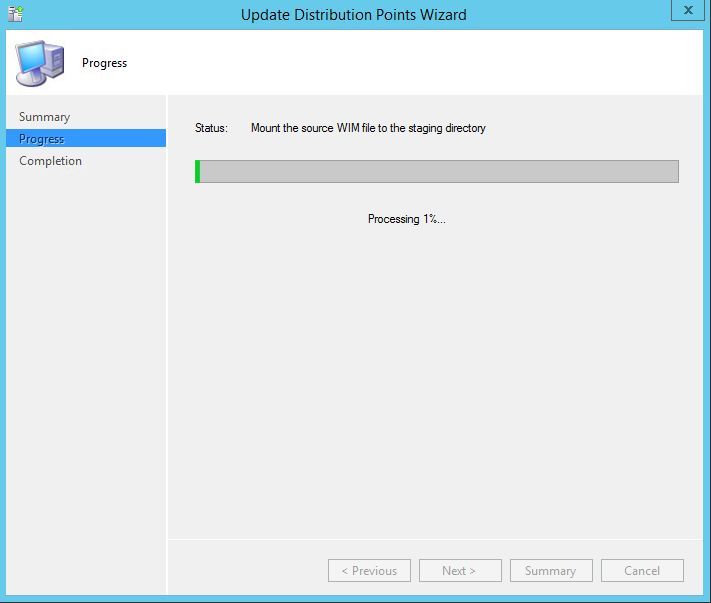
Next, you can update the driver package on the distribution point.
Accept the warning message.
Now, you can update the boot image(if needed) on the distribution point.
Follow the short wizard.


Now, you can edit the appropriate task sequence to include the driver package. First off, it's wise to retrieve the WMI information for the specific model.

1. Open a command prompt on the model (in this case a Dell XPS 17).
2. Type: WMIC Computersystem GET Model and hit enter
3. The output should be something like this:
Model
Dell System XPS L702X

Copy and paste this information to a Notepad, so that you can use it in your task sequence in a moment.

Next, rightclick the task sequence, and click Edit
Add an 'Apply Driver Package' step, in the appropriate place in the task sequence.
Give it the correct name, and choose the correct driver package.
On the Options tab, using 'Add Condition', you can add a Query WMI rule.
Paste in the following code:
SELECT * FROM Win32_ComputerSystem WHERE Model LIKE ""

Put the model you got from the WMI query you ran, between the quotation marks.

Click on Test Query. If it says that it contains valix syntax, the query should work.


Save the task sequence. Now you are ready to roll out a machine with the correct drivers!


Tuesday, March 18, 2014

Howto: Create a device collection based on manufacturer in SCCM 2012

In this blog we'll discuss how to create a device collection in SCCM based on a device manufacturer.
This can be usefull when targeting hardware specific applications for instance.

First off, we'll need to get the manufacturer as it is noted in WMI. In our example, we used an ASUS.

The command you can run in the command prompt is:

wmic computersystem get manufacturer

 As you can see the return value is : ASUSTek COMPUTER INC.
 Next, we'll create a new device collection in the SCCM Console.
 Give it an appropriate name and optionally comment it. Choose 'All Systems' as the limiting collection. Click Next.
 Choose for 'Add Rule' and click on 'Query Rule'.
 Give the query a recognizable name, and click on 'Edit Query Statement...'
 Go to the Criteria tab, and click on 'Show Query Language'.
 Paste in the following code:

select SMS_R_SYSTEM.ResourceID,SMS_R_SYSTEM.ResourceType,SMS_R_SYSTEM.Name,SMS_R_SYSTEM.SMSUniqueIdentifier,SMS_R_SYSTEM.ResourceDomainORWorkgroup,SMS_R_SYSTEM.Client from SMS_R_System inner join SMS_G_System_COMPUTER_SYSTEM on SMS_G_System_COMPUTER_SYSTEM.ResourceId = SMS_R_System.ResourceId where SMS_G_System_COMPUTER_SYSTEM.Manufacturer = "ASUSTeK COMPUTER INC."

Notice the last line, where the manufacturer comes in.

Click Next and finish the wizard.
Then rightclick the collection and choose 'Update Membership'. 
After refreshing the console, you'll notice that it's populated with ASUS devices.